TECHNOLOGY MADE SIMPLE
Make Your Phone Easier to See, Hear and Use
Five useful changes that can make an Android phone or iPhone feel calmer, clearer and less fiddly.
7 minute read
Change one setting at a time, test it for a day, and keep only what genuinely helps.
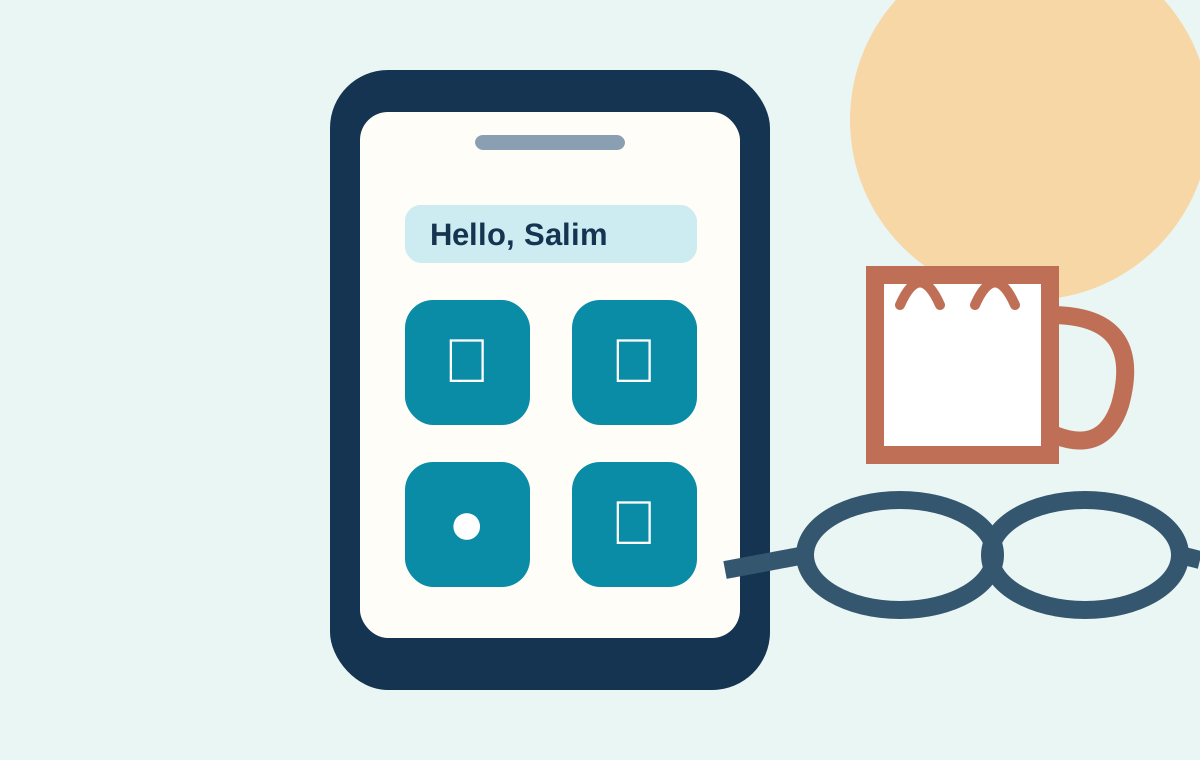
Start with the two size controls
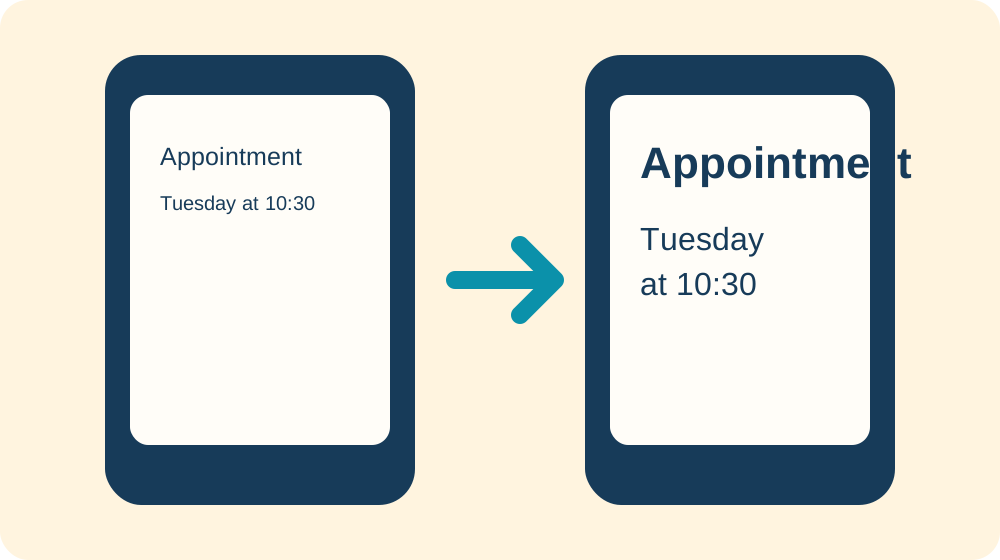
Making only the letters larger can help, but it may leave buttons and icons too small. Most phones have a second control that enlarges the rest of the screen as well.
On Android, open Settings and search for Font size, then for Display size. On iPhone, go to Settings, Accessibility, Display & Text Size, then Larger Text. Display Zoom can enlarge interface elements such as icons and buttons. The exact wording can vary by phone and software version.
Add contrast before adding brightness
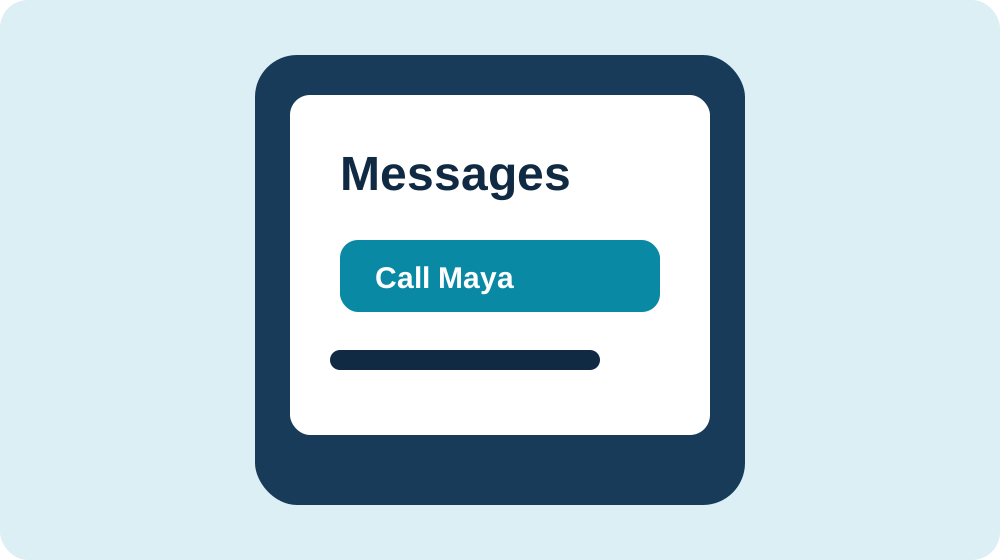
A brighter screen is not always an easier screen. Try bold text, stronger contrast or a simpler light or dark appearance, then set brightness to a comfortable level.
Android accessibility settings may include high-contrast or outlined text, colour correction and dark theme. On iPhone, Display & Text Size includes Bold Text, Increase Contrast and other display choices. Test changes with the apps you use most; a setting that helps in Messages may feel different in a photo app.
Keep magnification ready for the occasional tiny thing
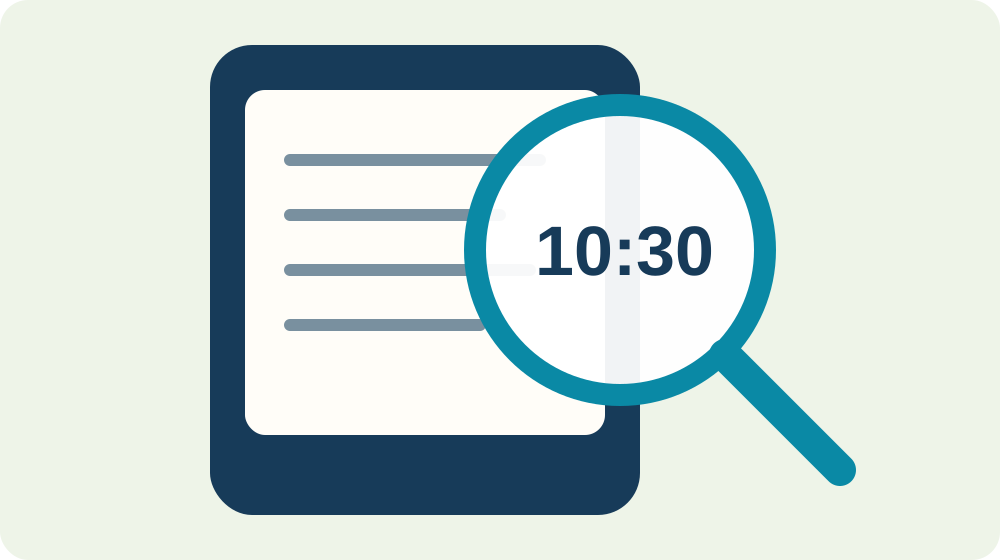
Some text stays small even after you change the main settings. Instead of struggling, set up the phone’s magnification shortcut.
On Android, look under Settings, Accessibility, Magnification. On iPhone, look under Settings, Accessibility, Zoom. Practise turning it on and off before you need it. If the gesture feels awkward, choose an accessibility button or shortcut that is easier to remember.
Let the phone show you what it is saying
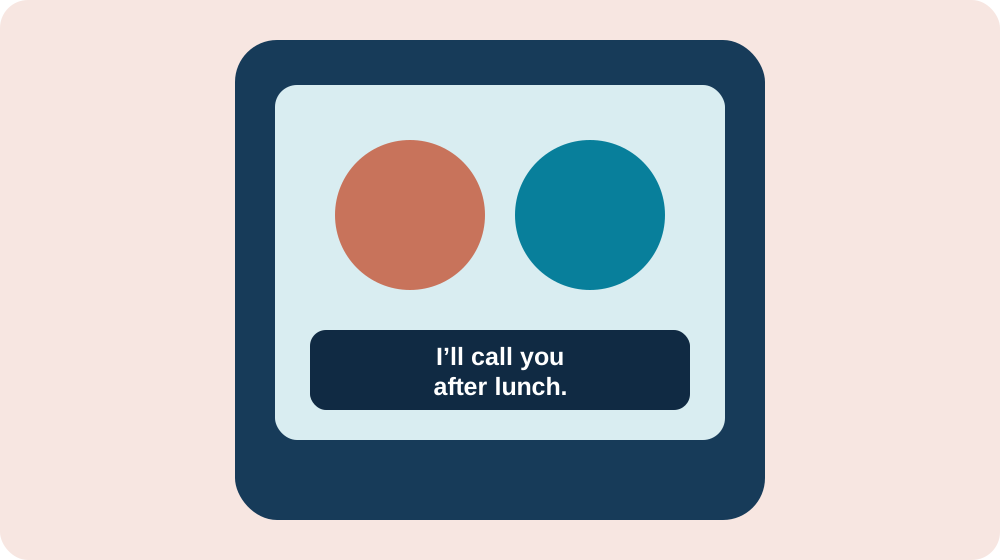
Captions can help with videos, voice messages and some calls. Android offers Live Caption on supported devices and can also change caption size and style. iPhone includes Live Captions and other hearing accessibility features, although availability varies by model, language and region.
Both systems can also provide visual alerts. Android includes flash notifications on supported phones. iPhone can flash the screen or indicator light for notifications. Use these selectively so important alerts stand out instead of every alert demanding attention.
Make the first screen quieter
Move the four or five apps you use most to the first screen: Phone, Messages, Camera, Photos and perhaps Maps or WhatsApp. Put less-used apps into one folder or on a later screen.
Remove widgets and shortcuts you do not recognize or use. This does not delete the apps; it simply reduces visual clutter. Keep the Phone icon in the same place so it becomes easy to find by habit.
Do a five-minute real-life test
After each change, try three ordinary tasks: read a message, answer a call and find the camera. If something became harder, change it back. The best setup is not the one with the most accessibility features turned on; it is the one that makes your own routine easier.
Ask someone you trust to write down any unusual shortcut they help you set. A small note—such as ‘hold both volume buttons for magnification’—can prevent confusion later.
Sources
Google Accessibility Help — Change text and display settings
Google Accessibility Help — Use accessibility features on Android
Google Accessibility Help — Use magnification
Apple Support — Make text easier to read on iPhone
Apple Support — Accessibility features for hearing on iPhone
What should we explore next?
Your experience can help make Life After 60 more useful.
Take the short survey